Overview
User Pages allow project administrators to create and publish static content directly within Alluvial.
Using the built-in page editor, you can develop engaging pages to share information, resources, and guidance with your users.
Getting Started
Access User Pages
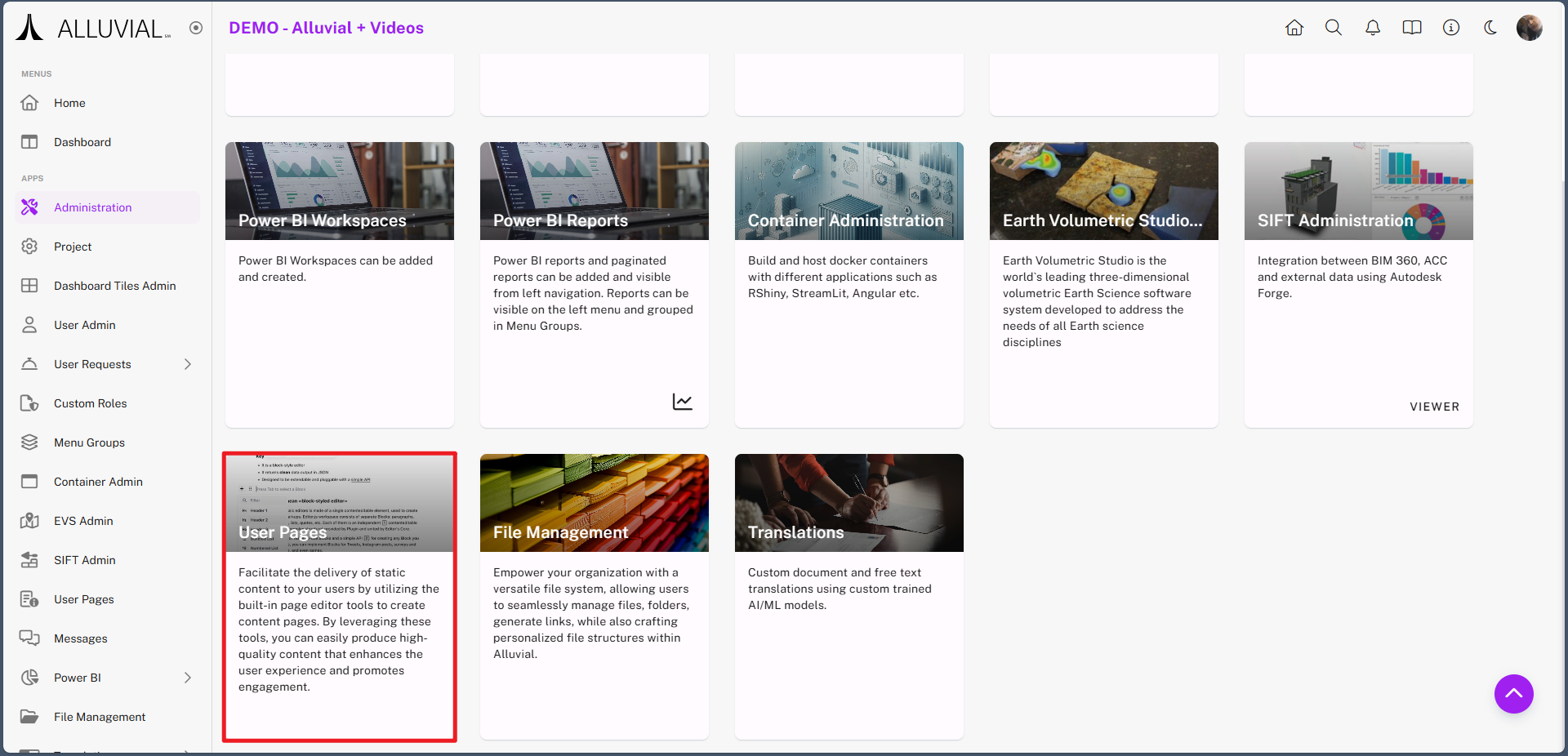
- Navigate to the administration page.
- Select the User Pages module to open the management view.
Core Concepts
Static Content Pages
User Pages are intended for static content such as project guidance, reference information, onboarding material, or embedded documentation for project users.
Markdown-Based Editing
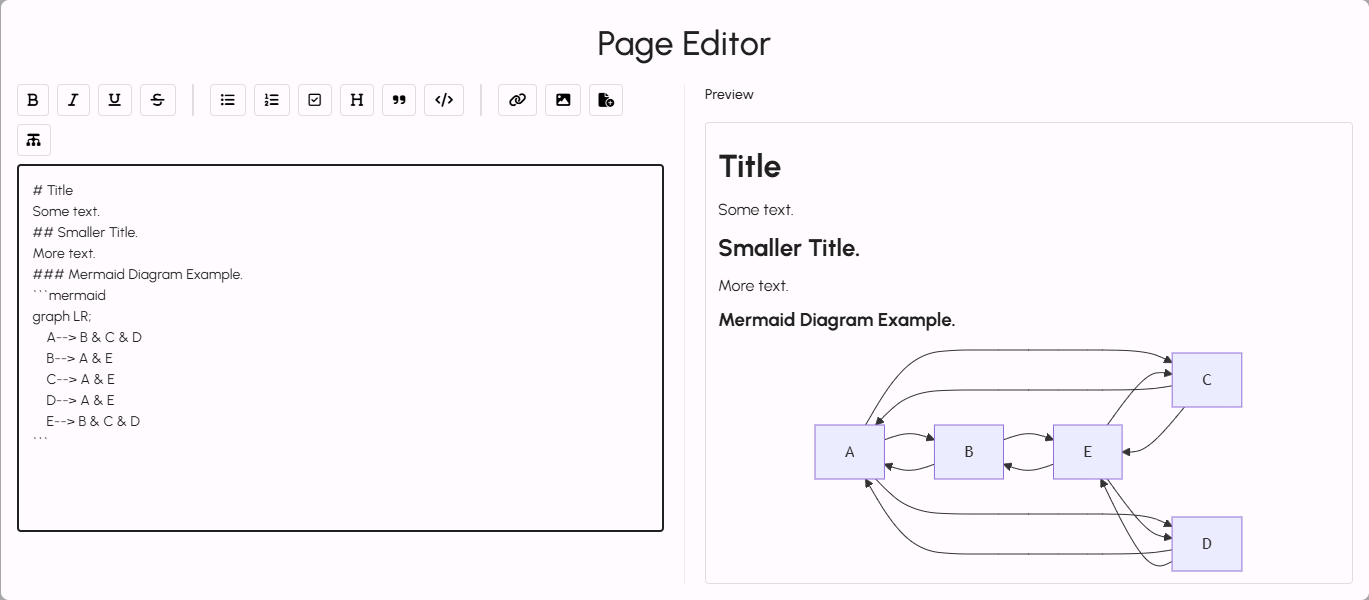
Content for User Pages is written in Markdown. The editor provides a user-friendly interface to help you format text, structure content, and preview the result before saving.
Mermaid Support
User Pages also support Mermaid syntax for creating flowcharts and diagrams. For more details, refer to the Mermaid documentation.
Common Tasks
Create a New Page
- Click CREATE NEW.
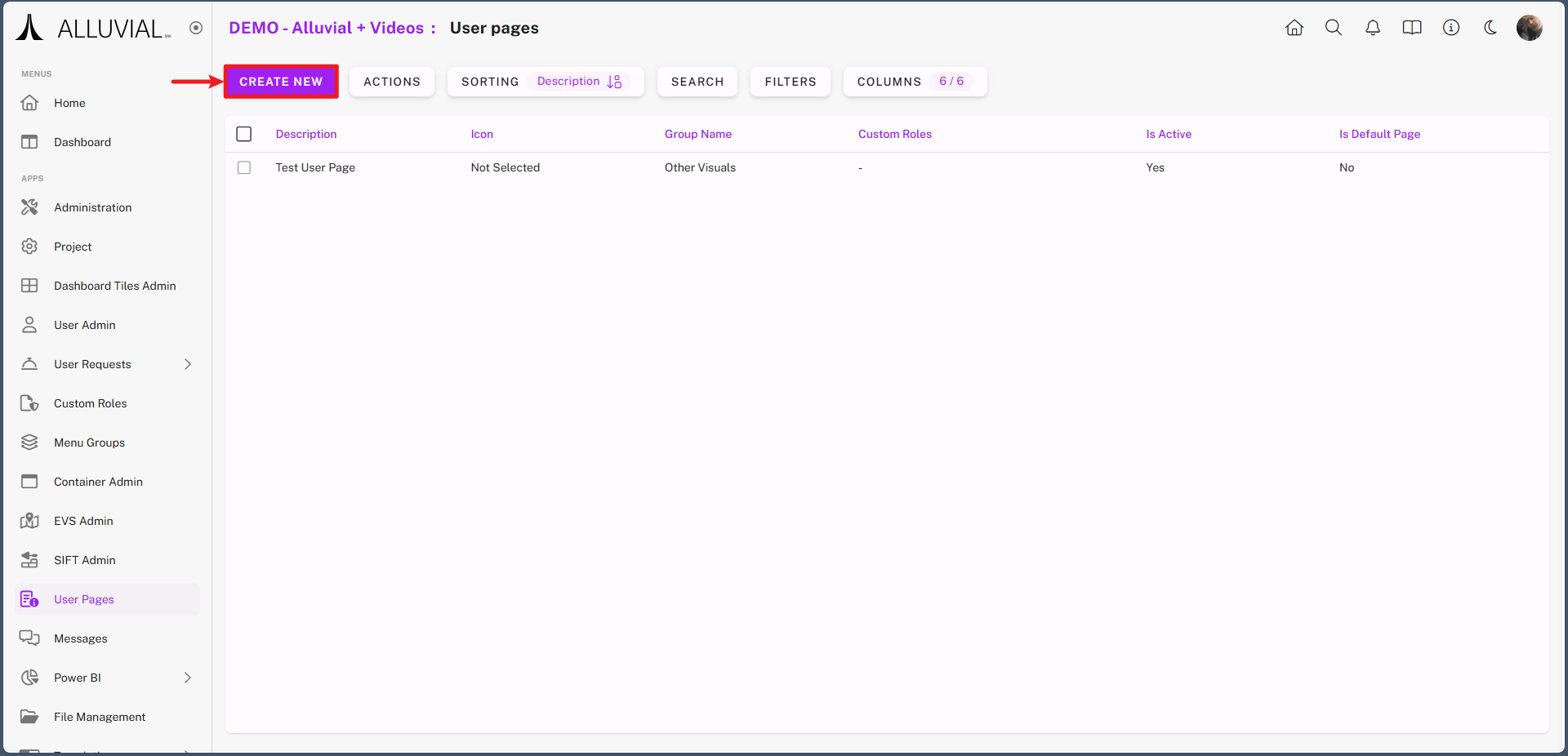
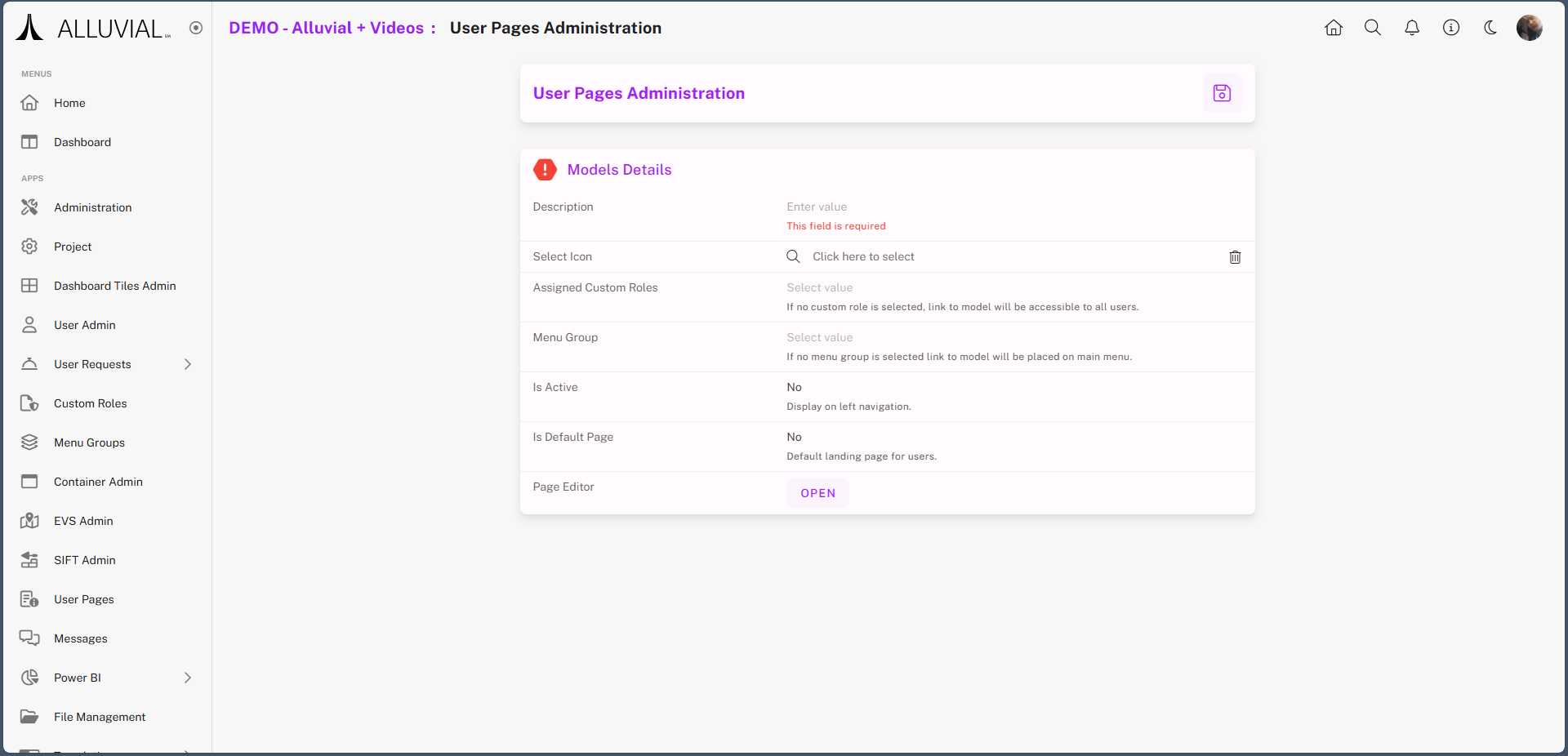
- The User Page creation form will appear.
Edit a User Page
- Click OPEN next to the Page Editor field to display the editor interface.
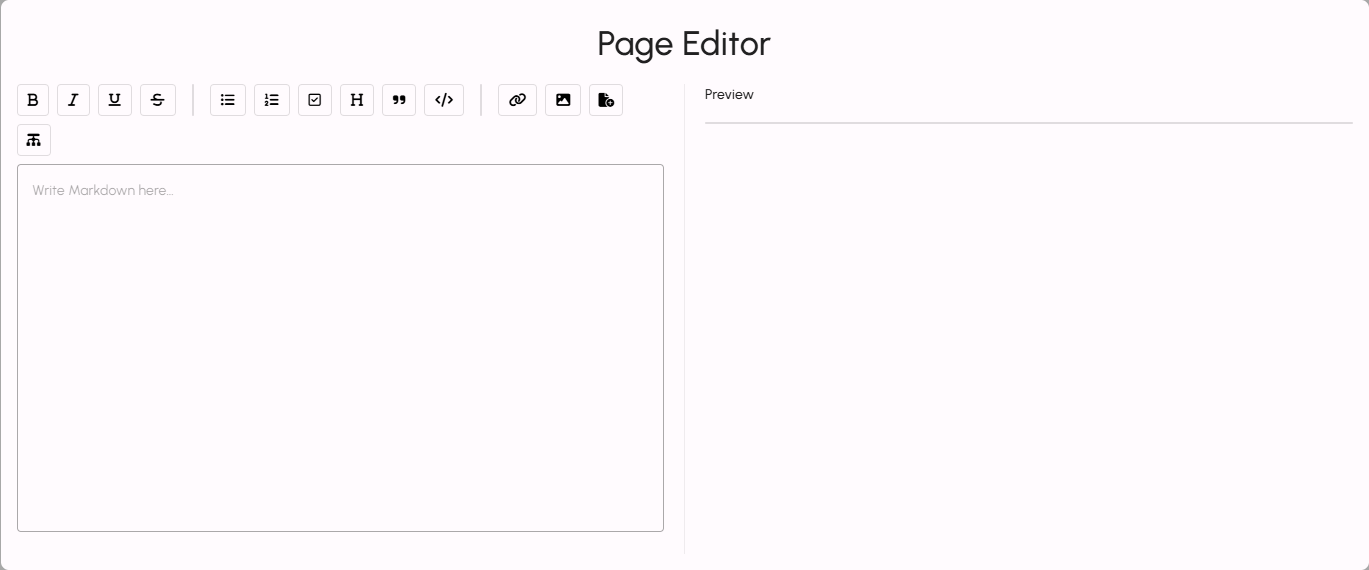
- Add your content in Markdown.
- Hover over the editor toolbar buttons to see their functions.

- Use the preview panel on the right side of the editor to review the rendered output.
- When finished, exit the editor by clicking outside it.
- Click the save button.
Once saved, the User Page will be accessible to project users, provided the remainder of the form has been configured correctly.