Overview
Alluvial supports secure collaboration between internal employees and external clients, enabling the exchange of data visualizations across organizations.
Project users access the pages, dashboards, reports, documents, and applications that have been made available within a project.
Who Manages Access
Project owners and project administrators manage project access.
- They are responsible for adding users to a project.
- They control visibility and permissions through user settings and assigned roles.
- Alluvial platform and support teams cannot add users to a project or restore project access on behalf of a project team.
IMPORTANT: If you need access to a project, or if your access has been removed, contact your project administrator directly.
Getting Started
Logging in to the Platform
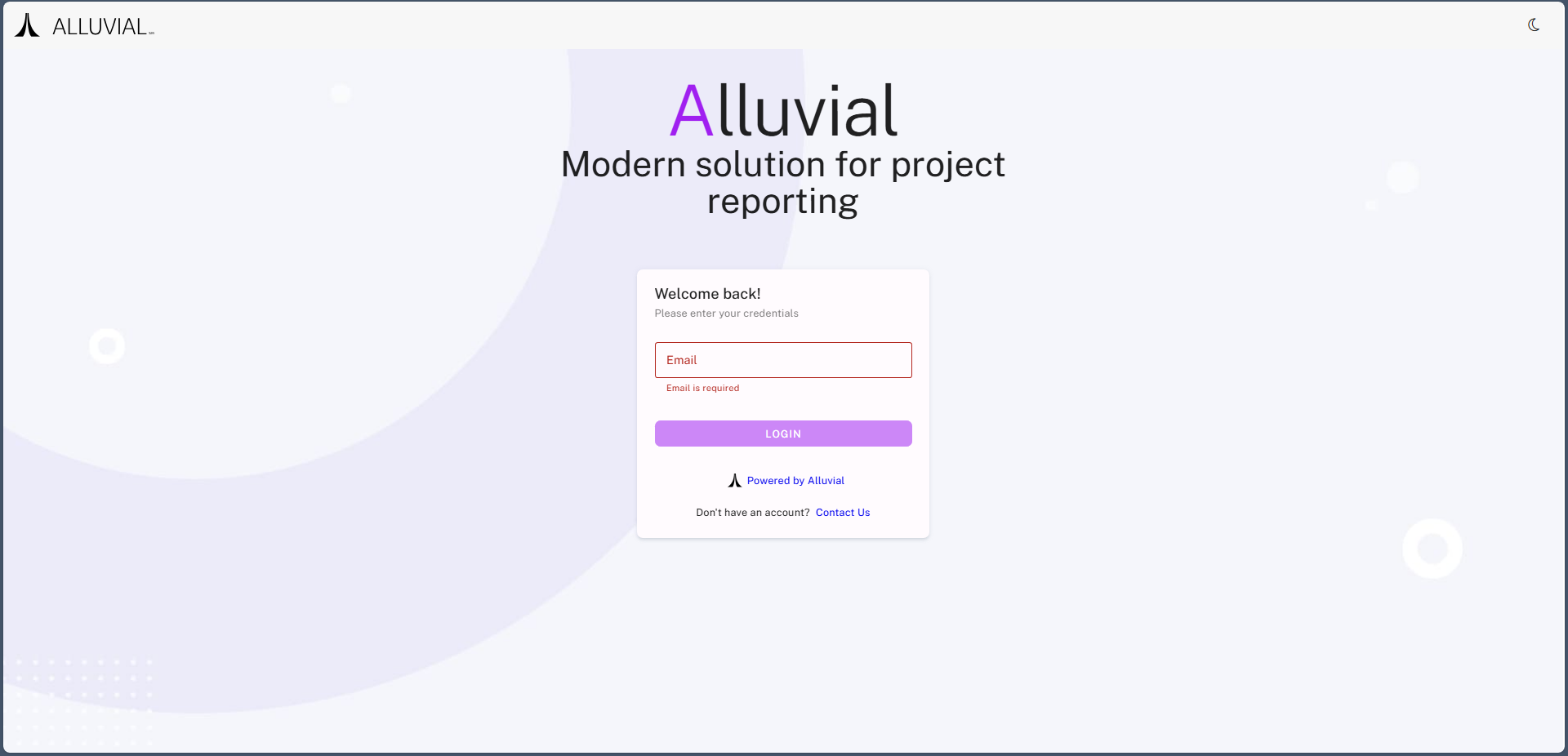
To log in, visit the Alluvial login page.
- Internal Users – Enter your organization email address and authenticate through Active Directory or Single Sign-On (SSO).
- External Users – Enter the exact email address that was added to the project and use the password created during account setup.
First-Time Access for External Users
When an external user is added to a project, they typically need to complete a one-time password setup before signing in.
- Open the confirmation or password setup email sent to your registered address.
- Follow the instructions to create your password.
- Return to the login page and sign in with that same email address.
IMPORTANT: If you do not receive the email, check your spam or junk folder first. If it still does not arrive, contact your project administrator to confirm that your account was added with the correct email address.
Access Expiration
Alluvial uses periodic user validation to help ensure that only currently authorized users retain access to project content.
If your access is not revalidated in time by your project administrator, your access may be removed automatically.
If you receive an Access Removed or Account Validity Warning email, contact your project administrator.
Common Problems
Shared Link Does Not Work
If a shared link gives you an error or does not open correctly, go directly to https://platform.alluvial.app, sign in, and then navigate to the project manually.
Missing Confirmation or Password Email
If you do not receive your confirmation or password setup email:
- Check your spam or junk folder.
- Confirm that the email address being used matches the one that was added to the project.
- Use Set / Reset / Forgot password? from the login page if appropriate.
If the issue continues, contact your project administrator.
Lost Project Access
If you can no longer access a project, your access may have expired, been removed, or changed. Project administrators control project access, and Alluvial Support cannot restore it for you.